
How to Connect Tuya / Smart Life to Siri Voice Control (2026 Pakistan Guide) — Omni Smart

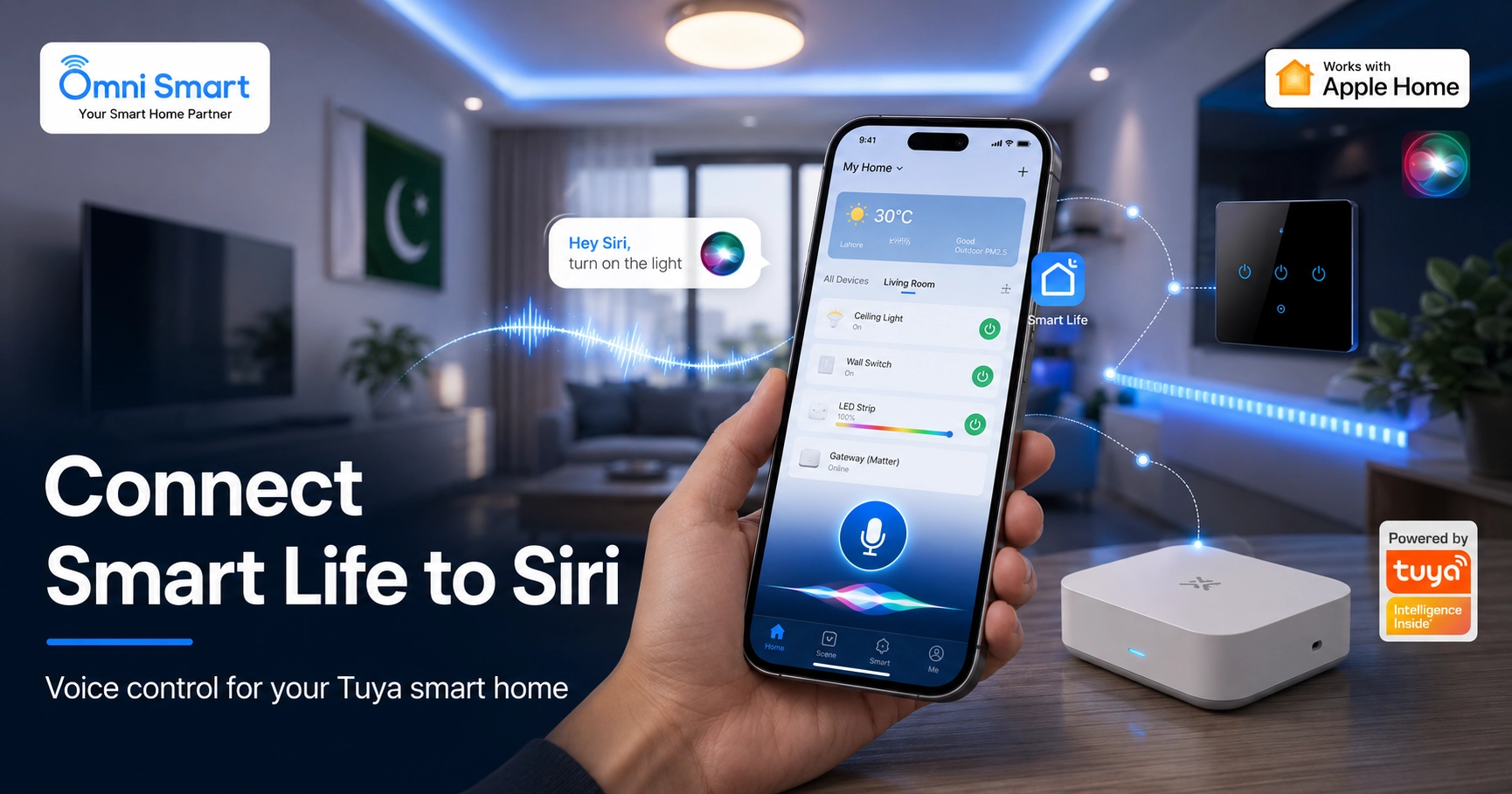
If you've built a smart home in Pakistan using the Tuya Smart or Smart Life app, you've probably wondered whether you can just say "Hey Siri, turn on the lights" instead of opening the app every time. You can — and you don't need to buy any extra hardware to make it work.
At Omni Smart we set up Tuya and Smart Life devices for homes and offices across Karachi, Lahore and Islamabad every week, and Siri voice control is one of the most common requests from iPhone users. This guide covers the exact method that works in 2026, the honest limitations, how to group several devices into one command, and the best voice commands for a typical Pakistani home.
Quick answer: Most Tuya / Smart Life devices are not native Apple HomeKit accessories, so you can't add them straight into the Apple Home app. Instead, you create a "Tap-to-Run" scene inside the Smart Life app and link it to a Siri Shortcut with your own voice phrase. Then "Hey Siri, <your phrase>" controls the device. It's free, takes about two minutes per command, and works with the Smart Life–compatible products you already own.
- Does Tuya / Smart Life work with Apple HomeKit?
- What you need before you start
- Method 1 — Siri Shortcuts (step by step)
- Grouping multiple devices into one command
- Brightness & colour control
- Method 2 — Matter: certified devices or a Matter gateway for your existing setup (native Siri)
- Method 3 — Homebridge / bridge (advanced)
- Method comparison
- Best Siri commands for a Pakistani home
- Troubleshooting & FAQ
Does Tuya / Smart Life work with Apple HomeKit?
This is where most online guides confuse people, so let's be clear. There are three different ways to bring Tuya into the Apple world, and they are not the same:
- Siri Shortcuts — uses the Smart Life app's scenes plus Apple's Shortcuts app. Works with virtually every Tuya device at no extra cost. Recommended for 95% of homes.
- Matter (native) — either buy newer Tuya products with the Matter logo, or add a single Matter-enabled Tuya gateway that brings your existing Zigbee/Tuya devices into the Apple Home app for native Siri control.
- Homebridge / bridge software — exposes all your Tuya devices to Apple Home, but needs technical setup or extra hardware.
What you need before you start
- iOS device — an iPhone or iPad on the latest software, with Siri enabled.
- Shortcuts app — Apple's automation tool, pre-installed on iOS. If it's missing, download it free from the App Store.
- Smart Life / Tuya Smart app — installed, signed in, with your devices already paired and working: smart switches, plugs, lights, and so on.
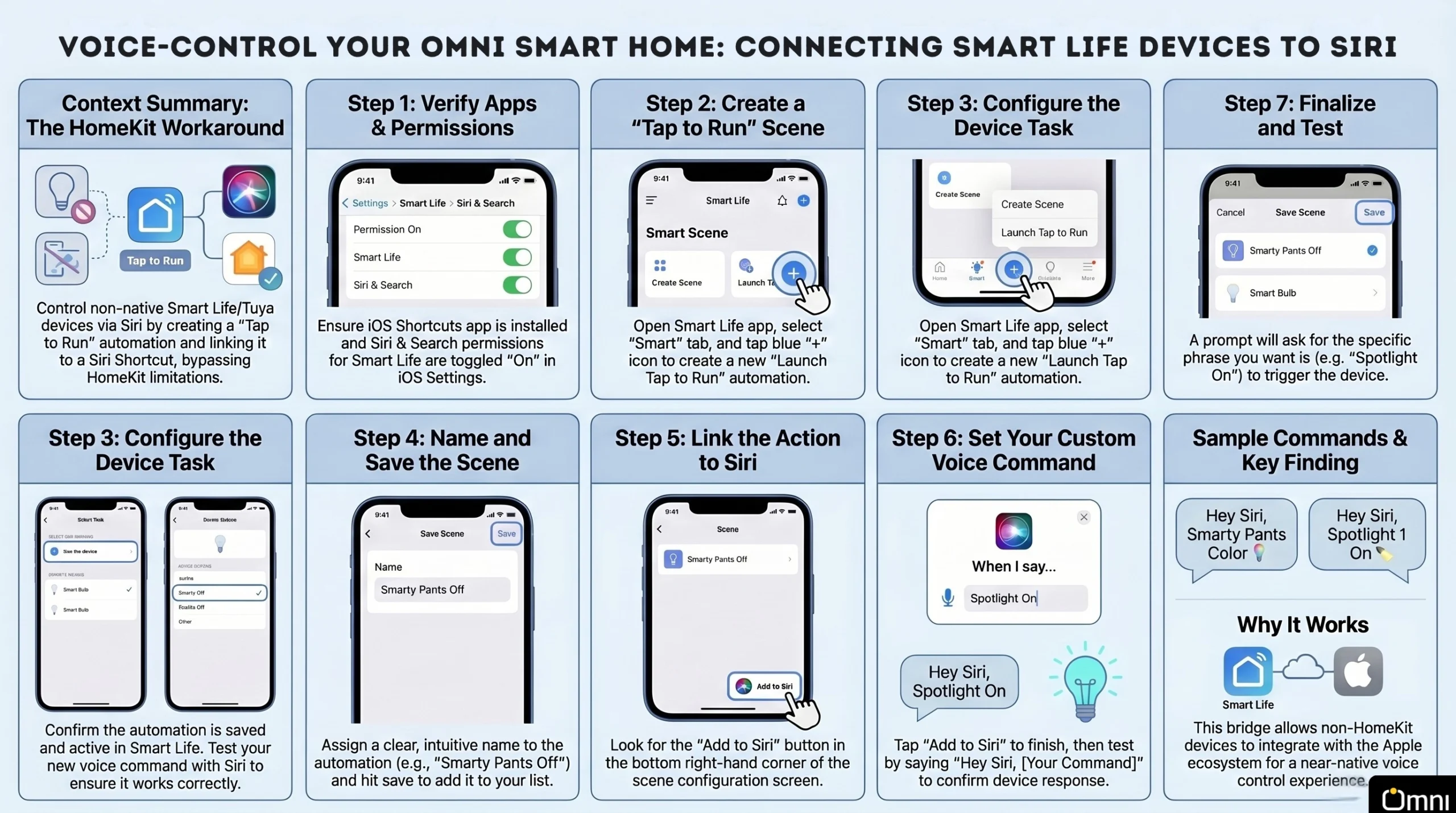
- System permissions — open Settings → Smart Life → Siri & Search and toggle all permissions on (green). This step is easy to miss and is the most common reason Siri can't find your scenes.
- 2.4 GHz Wi-Fi — nearly all Tuya/Smart Life devices use 2.4 GHz, not 5 GHz.
No hub, bridge, or paid app is needed for the standard method.
Method 1: Connect Smart Life to Siri using Shortcuts
You first build a one-tap scene in the app, then teach Siri a phrase that runs it.
Step 1 — Create a "Tap-to-Run" automation
- Open the Smart Life (or Tuya Smart) app and confirm the device is online.
- Tap the Smart (or Scene) tab at the bottom, then the blue "+" icon in the top-right corner.
- Under the Condition section, select Launch Tap-to-Run.
- Select Run the device and choose the product you want to control — for example a smart WiFi bulb or universal smart plug.
- Choose the function: Switch On, Switch Off, Brightness, or Colour.
- Tap Save, then Next.
Step 2 — Name and save the scene
- Give the automation a clear, easy-to-say name such as "Living Room Light On".
- Review the task and condition, then tap Save.
Step 3 — Link the scene to Siri
Option A — in-app (simplest):
- On the Scene screen, tap Add to Siri (usually at the bottom-right of the scene list or inside the scene's settings).
- Select the scene you just created.
- When prompted, keep the suggested phrase or type a custom one (e.g. "Living Room Light On").
- Tap Add to Siri again to finalise.
Option B — via the Shortcuts app (most reliable across app updates):
- Open Apple Shortcuts → "+" → Add Action.
- Search "Smart Life" (or "Tuya") and select it; your saved scenes appear.
- Pick your scene, then rename the shortcut to your exact spoken phrase. Tap Done.
Step 4 — Use Siri
Wake Siri and say your phrase:
- "Hey Siri, Living Room Light On."
- "Hey Siri, Spotlight One On."
- "Hey Siri, Smarty Pants Off."
The device should respond within a second or two. Repeat the process for each function (one shortcut for On, one for Off) or for each device.
Grouping multiple devices into one Siri command
You don't have to control devices one at a time. Add multiple tasks to a single Tap-to-Run scene and link the whole scene to one phrase — the most efficient way to manage a room.
- Go to Smart / Scene → "+" and select Launch Tap-to-Run.
- Under Task, choose Run the device for the first product (e.g. a smart bulb) and set its function.
- Add more tasks to the same automation — a second light, a smart plug, your RGB strip, or smart curtains.
- Give it a collective name like "Movie Mode" or "All Lights Off" and save.
- Tap Add to Siri, pick the multi-device scene, and confirm your phrase (e.g. "Hey Siri, Movie Mode").
Now a single command can dim the lights, close the curtains, and switch on your TV backlight together — far more efficient than repeating the process for every device.
Brightness and colour control with Siri
Because Siri triggers a pre-set scene, you control brightness and colour by baking the value into the scene itself.
- Dimming: create a scene that sets the bulb to, say, 20% brightness, name it "Dim Lounge", and link it to Siri. Make separate scenes for each level you use often (e.g. "Lounge Bright" at 100%, "Lounge Dim" at 20%).
- Colour: create a scene that sets a specific colour — "Lounge Red", "Party Mode" — then add it to Siri. Great with RGB LED strip lights, a Govee LED strip, or an HDMI TV-sync box.
Method 2: Native Siri control with Matter
Matter is the new universal smart-home standard that Apple Home speaks directly — so anything that reaches Apple Home through Matter can be controlled by Siri natively, with two-way status and stepless brightness/colour. There are two ways to get there.
Option A — Matter-certified devices
If a device carries the Matter logo, skip shortcuts entirely:
- Open the Apple Home app → "+" → Add Accessory.
- Scan the Matter QR code on the device or its box.
- Assign it to a room and name it. Siri now controls it natively.
When buying new gear, prefer Matter-ready models to future-proof your setup. Our team can advise which Tuya products in stock support it.
Option B — Upgrade your existing setup with a Matter-enabled Tuya gateway
Already invested in Tuya / Smart Life devices and don't want to replace them? You don't have to. Add a single Matter-enabled Tuya gateway (hub) to your network and it bridges your existing Zigbee and Tuya devices into Matter — which then talks straight to Apple Home, so Siri can control them natively without the per-scene shortcut workaround.
- Connect the Omni Smart Matter Gateway to your router (wired Ethernet gives the most stable connection) and add it in the Smart Life app.
- Pair your existing Zigbee/Tuya devices to the gateway so they appear in the hub.
- In the gateway's settings, enable Matter and generate a Matter pairing code.
- In the Apple Home app, tap "+" → Add Accessory and scan that Matter code — your devices now show up in Apple Home for native "Hey Siri" control.
This is the cleanest upgrade for an existing home: one gateway brings the whole Tuya ecosystem into Apple Home, Google Home and Alexa at the same time. View the Omni Smart Matter Gateway →
Method 3: Homebridge / bridge (advanced)
Tools like HOOBS, Homebridge with a Tuya plugin, or a Matter hub can expose all your Tuya devices to Apple Home for full native control. This gives the best experience but needs a spare device or a paid bridge and some setup — best for enthusiasts.
Method comparison: which one is right for you?
| Method | Extra cost / hardware | Difficulty | Brightness & colour | Best for |
|---|---|---|---|---|
| Siri Shortcuts | None | Easy | Fixed scenes only | Almost everyone — existing Smart Life devices |
| Matter (native) | A Matter-certified device | Easy | Full, stepless | New purchases, cleanest experience |
| Matter gateway (upgrade) | One Matter-enabled Tuya gateway | Easy–Medium | Full, stepless | Bringing an existing Tuya/Zigbee home into Apple Home |
| Homebridge / Bridge | Spare device or paid bridge | Advanced | Full | Tech enthusiasts who want everything in Apple Home |
Best Siri voice commands for a Pakistani home
Once shortcuts are set up, voice control becomes genuinely useful for daily life here:
- Load-shedding ready: "Hey Siri, Generator Line On" using a WiFi smart breaker or Tomzn 63A protection breaker so you switch loads without standing at the DB.
- Geyser control: "Hey Siri, Geyser On" paired with an electric geyser timer to cut gas and electricity waste.
- Water pump / rooftop tank: "Hey Siri, Water Pump On" with a timer switch for water pump so you never overflow the tank again.
- Fans & cooling: "Hey Siri, Bedroom Fan On" with a WiFi voice-control ceiling fan.
- Mood lighting: "Hey Siri, Movie Night" to dim your RGB lights and close the smart curtains at once.
- Leaving home: "Hey Siri, Going Out" to switch off lights, smart switches and plugs across the house in one command.
Prefer a different assistant? The same devices also work with Amazon Alexa and Google Home, so you're never locked in.
Shop Smart Life & Tuya devices that work with Siri Switches, plugs, RGB lights, breakers, curtains & more — delivered across PakistanTroubleshooting: Siri not working with Smart Life?
Siri doesn't recognise my command
- The shortcut name and the phrase you speak must match. In the Shortcuts app, rename it to something short and distinct — avoid near-identical names like "Light On" vs "Lights On".
- Re-check Settings → Smart Life → Siri & Search permissions are on.
- Re-record the phrase; speak naturally and avoid numbers or symbols in the name.
The command runs but the device doesn't respond
Siri triggers the scene through the cloud, so both your phone and the device need internet. During load-shedding, if your router is off the command fails — consider a small UPS or inverter on the router. Also confirm the device still works from inside the Smart Life app first.
The device won't connect to Wi-Fi at all
Almost all Tuya/Smart Life devices need a 2.4 GHz network. Many Pakistani dual-band routers (PTCL, Nayatel, StormFiber, Jazz) broadcast 2.4 GHz and 5 GHz under one name — temporarily split them, or connect your phone to the 2.4 GHz band while pairing.
I have an Android phone — can I still use voice?
Siri is iPhone-only, but Android users get the same experience through Google Nest / Google Assistant.
Frequently asked questions (Pakistan)
Can I control Smart Life with Siri without buying a hub?
Yes. The Siri Shortcuts method needs no hub or extra hardware — just your iPhone, the Smart Life app, and devices already added on your Wi-Fi.
Is Tuya compatible with Apple HomeKit?
Only Matter-certified Tuya devices are native HomeKit accessories. For all other devices you use Siri Shortcuts, or a bridge like Homebridge/HOOBS for full Apple Home integration.
How do I create a shortcut to turn devices off?
Each scene is one-directional. Create a separate "Off" scene (with the device action set to Switch: Off) and add it as a second Siri shortcut with its own phrase.
Can I set brightness levels using these Siri shortcuts?
Yes — bake the brightness value into the scene (e.g. a "Dim Lounge" scene at 20%). Siri runs that fixed level. For stepless "set to X%" control, use a Matter device.
Can I use Siri to change my smart bulb colour?
Yes. Create a scene that sets the colour you want (e.g. "Lounge Red") and link it to Siri. Works with RGB lights and Govee strips.
Can I group multiple devices into one Siri command?
Yes — add several tasks to a single Tap-to-Run scene (e.g. "Movie Mode") and link the whole scene to one phrase.
Can I make my existing Tuya devices work with Apple Home without replacing them?
Yes. Add a single Omni Smart Matter Gateway to your network. It bridges your existing Zigbee/Tuya devices into Matter, which Apple Home reads directly — giving you native "Hey Siri" control without the per-scene shortcut workaround, and it works with Google Home and Alexa at the same time.
Does Siri voice control work when I'm away from home?
Yes, as long as your home router is online and your phone has internet. The command runs through the Tuya cloud, so it works from anywhere.
Which Tuya / Smart Life products do you sell in Pakistan that support voice control?
Our smart switches, smart plugs, WiFi breakers, RGB lights and smart curtains all work with Siri, Alexa and Google Home. Browse everything on the Smart Life compatible page.
Do I need to keep the Smart Life app installed after setting up Siri?
Yes. The shortcut relies on the app's account and scenes, so keep it installed and signed in.
Final word
Voice control turns a good smart home into a genuinely effortless one. With the free Siri Shortcuts method, your existing Tuya and Smart Life devices answer to "Hey Siri" in a couple of minutes — no extra spending required. If you'd like us to handle the full setup, Omni Smart offers installation and configuration across Pakistan.
Need help setting up voice control? Free site survey in Karachi, Lahore & Islamabad — get a quote today